Payment Method
Administration > Cashier Setup > Payment Method
Payment Method establishes the types of payments accepted for activities and events provided by your organization:
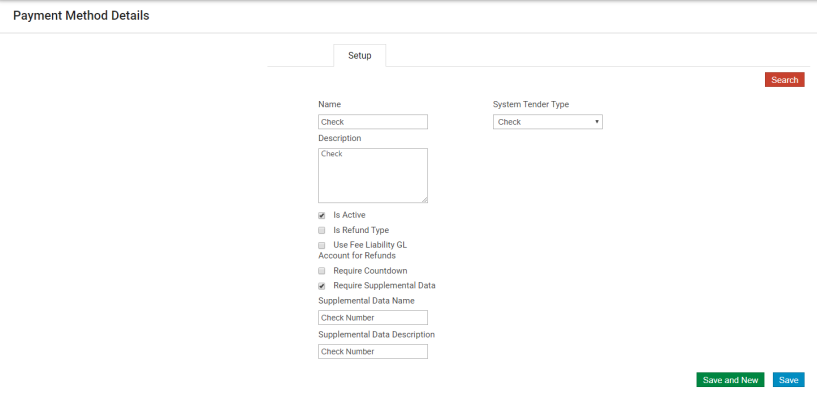
- When the Is Refund Type check box is selected, this payment method may be used to issue refunds.
- If the value of the System Tender Type is Account Credit and the Use Fee Liability GL Account for Refunds check box is selected, the system uses the liability account that is associated with a fee when refunds are issued for that fee.
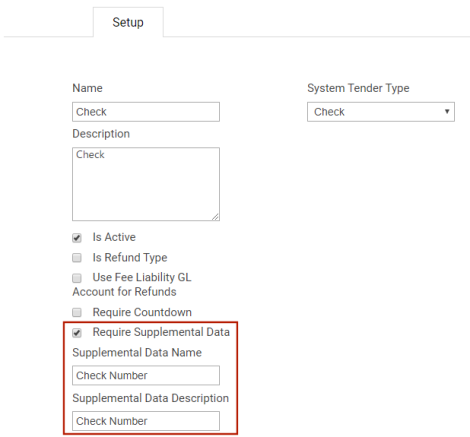
- If the Require Supplemental Data check box is selected, the page refreshes to provide the Supplemental Data Name and Supplemental Data Description:
If the value of the System Tender Type is Account Credit and this payment method is set up for all fees associated with a rental item or a class activity and a payer has an account credit, the payer may use the credit to process payment for a rental item or class activity.
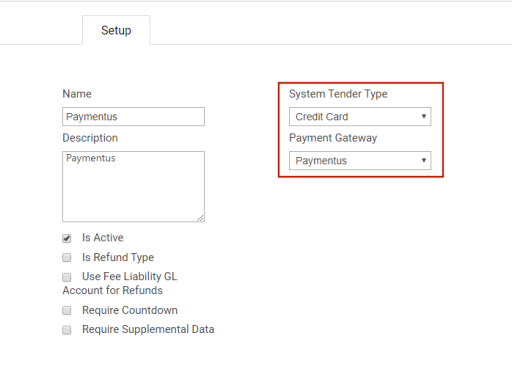
If the value of the System Tender Type is Credit Card, the Payment Gateway drop-down is available. The options on the drop-down define the payment gateway to use for processing credit card payments. Additional fields may be available depending on the particular payment gateway selected:
If the Payment Gateway is BridgePay and the Apply Credit Card Service Fee check box is selected, two additional check boxes appear to let you select whether a service fee is included in the back office or citizen portal payment process. A Service Fee Support rich text field also appears:
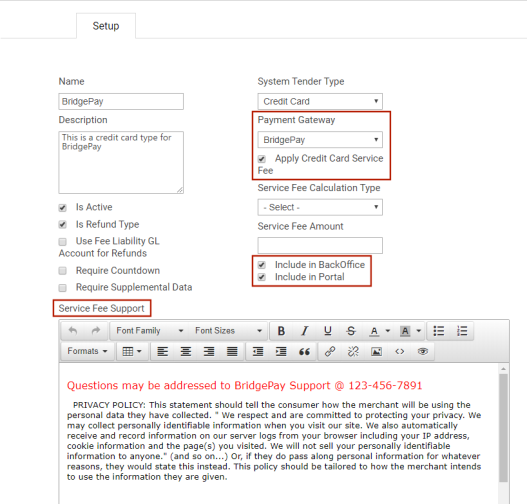
Note: If Cashiering is enabled in Integration Settings, the Include in BackOffice service fee field will be disabled, since the service fees are configured in Cashiering.
Text entered in the Service Fee Support field appears whenever BridgePay is selected as the Payment Method on the citizen portal.
Note: The merchant collects the service fee; BridgePay facilitates that process.
In the rental registration create process, the service fee displays above the total in the Order Summary section, and additional fee information and the phone number for BridgePay Support display in the Payment section.  View image:
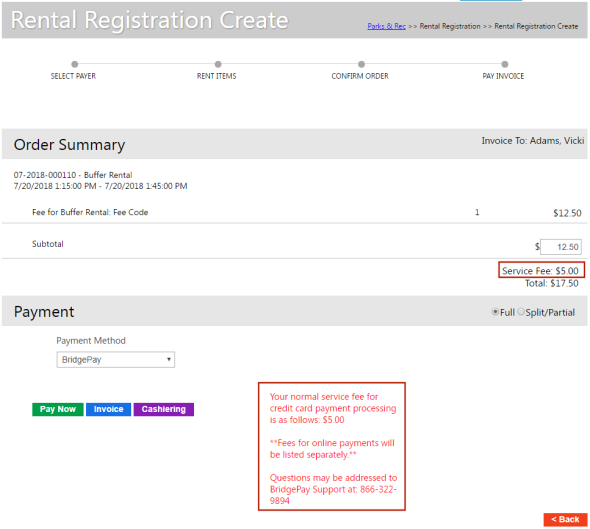
This information also displays on the receipt.
The Require Countdown check box limits the time a citizen may be retained as registered in the class without providing payment. If the registrant does not pay within the countdown period, the class registration is removed and the spot is made available to other participants.
The options for the System Tender Type are not available for update.